

A workflow monitor answers the question "does this still work?" It opens the page in a real browser, optionally performs a few steps, and then checks for a success condition. If the condition isn't met, the check fails and you're alerted.
Guided setup
Guided setup is the quickest way to a monitor that works, and it is where New monitor starts. You choose what matters and answer a question or two; Simrix Monitor finds the buttons itself.
- Choose what to protect: Shoppers can buy, Search finds products, A page is up and says the right thing, or Tell me when a page changes. Not sure? Describe it in your own words and we pick the right one. No site yet? Paste its address here and carry on.
- A few details: which product to use (or let us pick one), the word a customer would search for, or the words a page should show. Alerts go to the site's notification email, filled in for you; change it here if they should go somewhere else.
- We set it up live: a real browser does what a visitor would, step by step, while you watch. A product that wants a size, colour or quantity first gets the first available choice in each, as a shopper would choose, and the monitor makes the same choices every time. For Shoppers can buy it goes past the cart: it presses your store's own Proceed to checkout and checks that the payment form appears. It never types into your checkout and never places an order. A store that asks for contact and delivery details before it shows any payment form is checked for its checkout opening instead, and the setup says so.
- Confirm: you see a screenshot of every step and the final check. Only a monitor that passed is offered for saving, with the one exception below, and its first check starts as soon as you save it.
If a step can't be done, we say which one and why, and offer a way forward: try again, use a different product or word, or Pick visually to show us the button yourself. When the checkout would not open, you can show us its Proceed to checkout button (we add the product to the cart first, so the button is there to pick), or Stop at the cart and check that shoppers can add to it.
When the page opens but the words you gave are not on it yet, such as Coming soon before a launch, you can Save it anyway. Until the words appear, each check fails and you get an alert, then a reminder at most once an hour. When they appear, the check passes and you get an alert saying so.
Every step of a monitor set up this way is named in plain words, like Press Add to cart or The payment form appears, and those are the words its alerts and its check page use.
Advanced setup
Advanced setup, for developers and agencies, starts from a template and lets you choose every element and check yourself. Its sections show what is done and what is still needed, and a list beside Create Monitor names anything missing.
Templates
When you create a workflow monitor in Advanced setup you start from a template. Templates set sensible defaults; you can adjust anything afterwards.
Universal templates work on almost any site:
- Page health: the page loads and returns a healthy response. The best first monitor for any site.
- Important text present: a specific phrase appears on the page.
- At least this many items visible: a minimum number of matching elements are on the page (product cards, search results, listings).
- CTA or button visible: a key button or link is present.
- Redirect health: a URL lands on the page it should.
- Contact form submission / Lead form submission: fill and submit a form, then confirm the success state.
- Search returns results: enter a test value, trigger the search, and confirm results appear.
- Filter or sort changes results: click a control and confirm the results refresh.
- Thank-you or confirmation after click: click a CTA and confirm a confirmation message appears.
- Login or portal page health: a sign-in page loads correctly.
- Widget or embed visible: a third-party widget (chat, booking, map) renders.
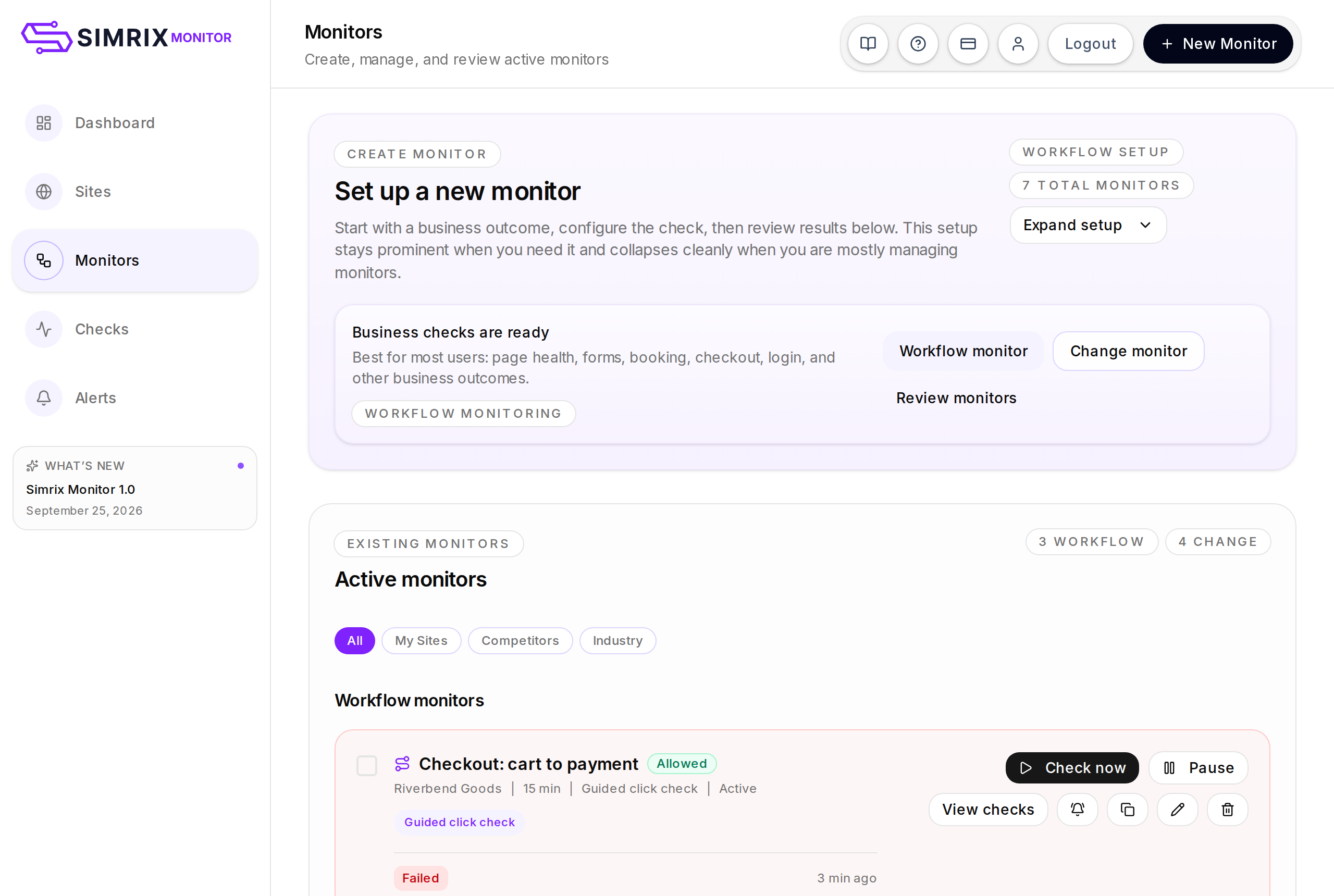
Recommended for this site appears when Simrix Monitor recognises the platform: WordPress, WooCommerce, Shopify, HubSpot, Calendly, and others. These templates come with defaults tuned to that platform, such as Add-to-cart flow, Checkout ready, Booking flow ready, or Portal sign-in form ready.
Advanced checks give direct control for technical users: element exists, element missing, custom text assertion, text missing, page title contains.
Setup styles
Each template is one of three styles, shown on the monitor card:
- Simple page assertion: open the page, check the condition. No interaction.
- Guided click journey: click something first, then check.
- Guided form submission: fill in a form, submit, then check.
Opening the cart after Add to cart
A guided click journey can also open a second page on the same site before its final check: fill in Then open this page with a path such as /cart. Every check starts as a new visitor with an empty cart, and many stores show no checkout button on an empty cart, so a monitor that opens /cart on its own fails on a store that is working. Start on a product page, press Add to cart, then open /cart and check for the checkout button. A check that ends on an empty cart says so in its result.
Success checks
Every workflow monitor ends with one final check. Depending on the template you can confirm that the page:
- opens successfully
- shows expected text
- avoids unwanted text (useful for "no maintenance banner")
- has a title containing expected text
- landed on the expected URL
- shows an expected element
- keeps an unwanted element hidden
Picking elements visually
Templates that need a specific element (a button, a form field, a results container) let you choose it visually. Click Pick visually next to the field: Simrix Monitor loads the page in a preview and you click the element you want, and the field is filled in for you. Suggestions appear beneath the field when Simrix Monitor can detect obvious candidates.
The final check of a guided click journey can be picked visually too. The picker follows the journey first (the press, then the second page if there is one) and shows the page the check will look at, so the checkout button on a cart can be picked from a cart that has something in it.
You can only preview pages on hosts that belong to sites in your workspace.
Frequency
Choose how often the monitor checks: every 1, 5, 15 or 30 minutes, hourly, every 6 hours, or daily. How fast you can go depends on your plan (see Billing and plans). Frequencies below your plan's minimum are shown but disabled.
Checks are not metered: no monitor is paused because of how many checks it makes. See Troubleshooting for the rare case where a monitor is slowed down.
Reading results
A workflow check is either passed or failed. Check detail shows What this monitor checks, the Final success check, and the Monitor outcome in plain language, with the technical failure detail underneath when there is one. See Checks and results.