

Simrix Monitor performs real browser checks against your website on a schedule and tells you when something breaks or changes. Setup takes about five minutes.
1. Sign in
Go to simrixmonitor.com/signin. You can sign in with Google or with an email and password.
If you signed up with a password, you can set up your first site and monitor right away and see its checks. Alerts start once your email is verified, and so do more sites and monitors, billing and team changes. Check your inbox for the verification link, or use the banner on your dashboard to resend it. Signing in with Google verifies your email for you.
2. Add a site
A site is a website you want to monitor. Every monitor belongs to a site.
- Open Sites in the left navigation (on a phone, tap the menu icon at the top left).
- Fill in:
- Site Name: how it appears in the app, e.g. Company website
- Base URL: the site's address, e.g.
https://example.com - Notification Email: where alerts for this site are sent
- Monitor Purpose: My Site, Competitor, or News & Industry. This tailors the monitor suggestions you see later.
- Timezone: used for daily summaries
- Click Create Site.
Simrix Monitor scans the homepage once to learn what platform it is built on (WordPress, Shopify, and so on) and uses that to recommend monitors.
Only public websites can be monitored. Localhost and private network addresses are rejected.
3. Create a monitor
- Open Monitors. If you have no monitors yet the setup panel is already open; otherwise click Expand setup or New Monitor at the top.
- Choose a type:
- Workflow monitor checks that something works: a page loads, text is present, a form submits, a button leads somewhere.
- Change monitor watches a page or a region of it and tells you when the content or appearance changes.
- Pick a site, confirm the URL, and choose how often to check (Frequency).
- For a workflow monitor, pick a template such as Page health; the guided templates cover most needs. For a change monitor, choose Full page or pick a region on the page.
- Click Create Monitor.
4. Check it once
Every monitor card has a Check now button. Check your new monitor once before trusting the schedule; it's the fastest way to catch a wrong URL or an element that does not match.
- A workflow monitor will pass or fail immediately.
- A change monitor's first check captures a baseline. It reports changes from the second check onward.
5. Read the result
Click View checks on the card, or open Checks in the navigation. Each check shows its status, how long it took, a screenshot, and (for failures) a plain-language explanation of what went wrong.
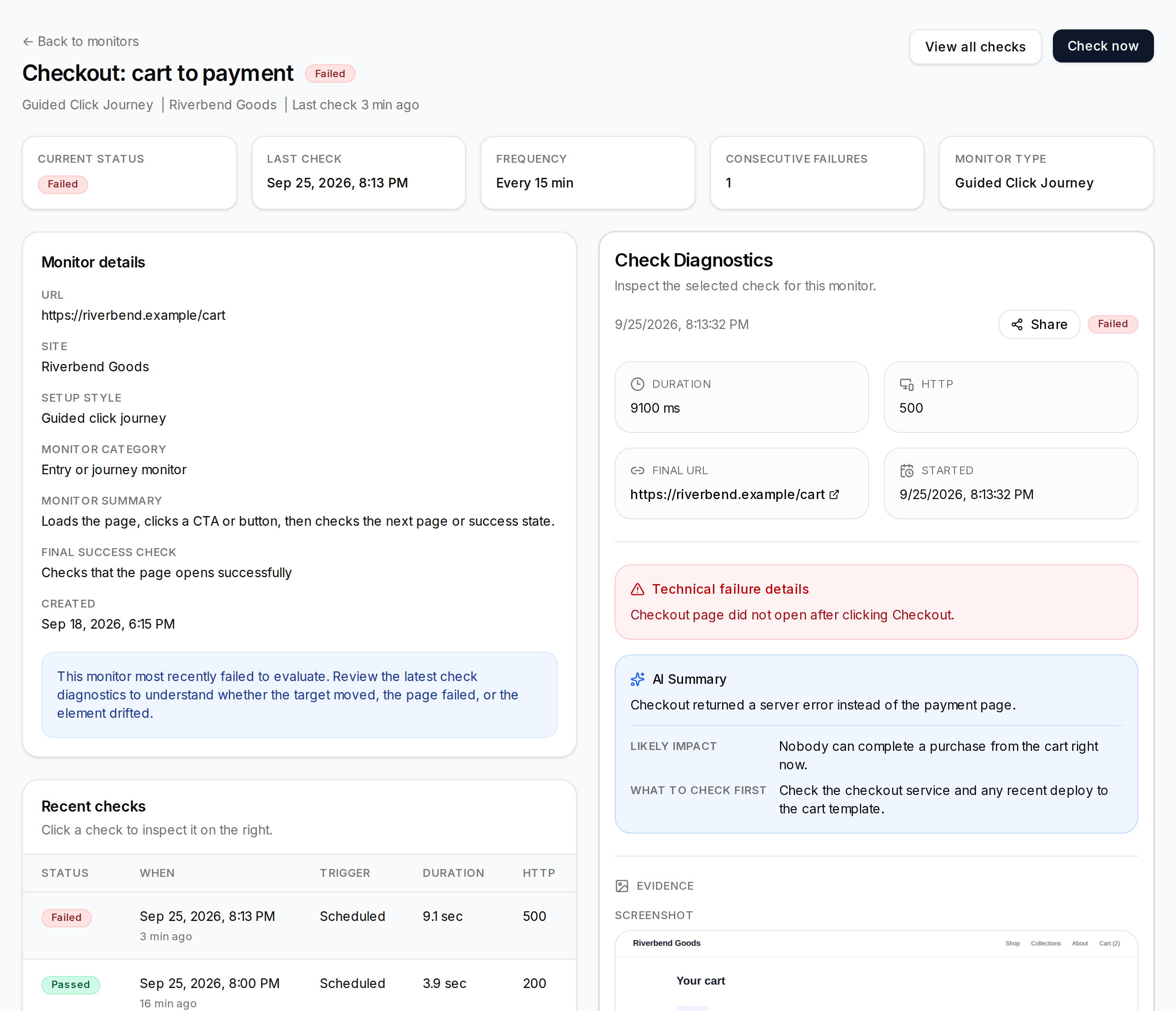
From here, monitoring continues on the schedule you chose. You'll be emailed when a monitor fails, recovers, or detects a change (see Alerts and notifications).
Where things are
| Page | What it's for |
|---|---|
| Dashboard | Overview of recent checks, failures, and usage |
| Sites | The websites you monitor |
| Monitors | Create, pause, edit, and check monitors |
| Checks | Full execution history with screenshots |
| Alerts | Recent failures and detected changes |
| Account | Profile, billing, team, notifications, API keys, webhooks, support |
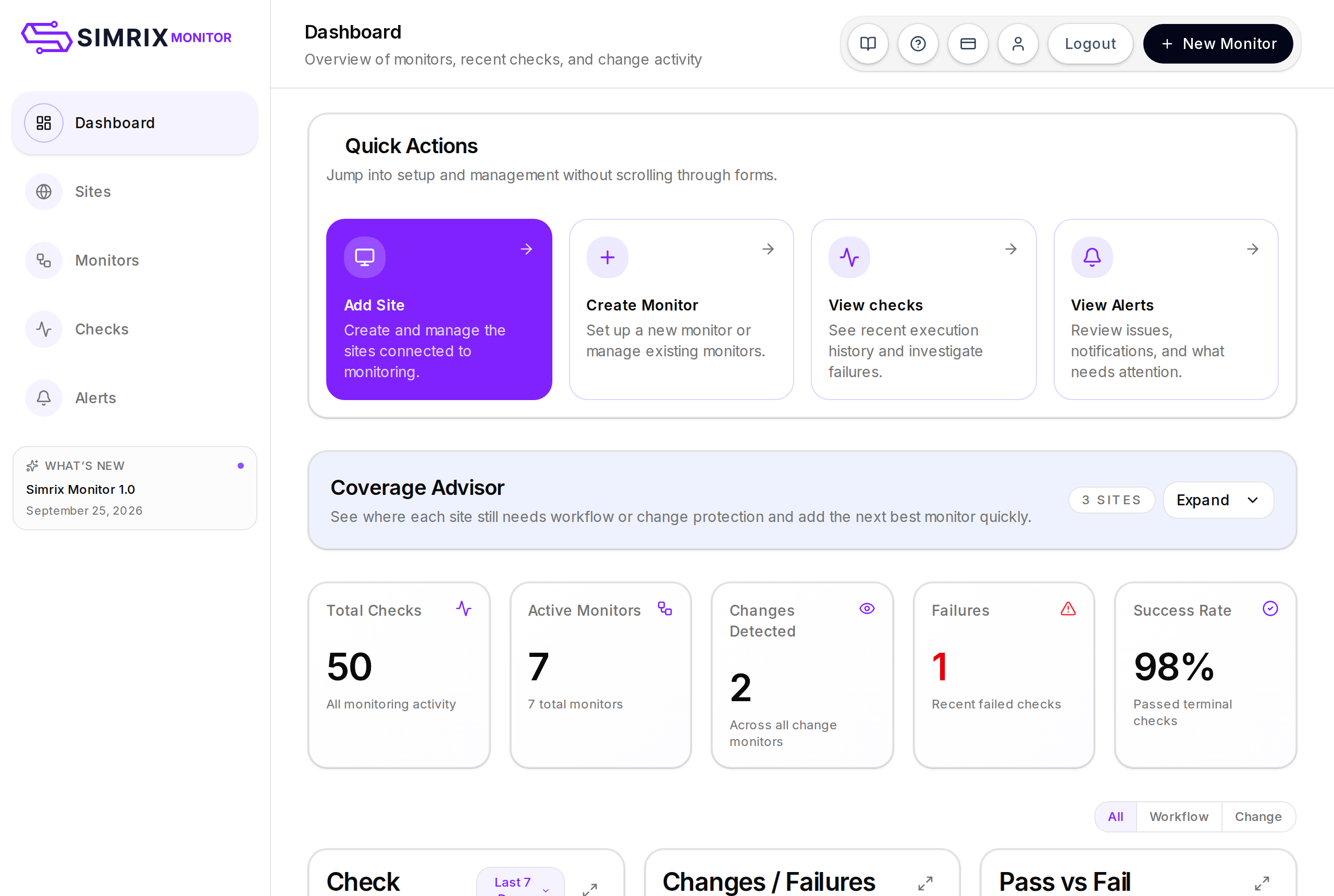
On a phone, all of these are behind the menu icon at the top left.